What Meridian is
Trino is a fast SQL engine for querying data where it lives: data lakes, warehouses, databases. A Trino cluster takes from tens of seconds to several minutes to start. So most teams pick one of two compromises:
- Keep one big shared cluster running. A heavy job from one team slows down everyone else, and a bad query can take it down for all.
- Start a cluster per job. Every pipeline run, test and notebook then waits for start-up.
Meridian removes the trade-off. It keeps a pool of Trino clusters started and waiting. When a job needs one, Meridian hands over a ready cluster in milliseconds. When the job is done, the cluster goes back to the pool. Broken clusters are replaced on their own.
Meridian has two parts, and both ship in the same Helm chart:
☸️ The operator
Runs in Kubernetes. Keeps pools of ready Trino clusters, sizes them from profiles, health-checks and replaces them, rotates catalog credentials, and serves a REST API for reservations.
🤖 The MCP server
Lets AI agents such as Claude Code and Claude Desktop work with your clusters through the Model Context Protocol: list pools, reserve a cluster, explore catalogs, and run read-only SQL.
Meridian is open source under the Apache 2.0 license and runs entirely in your own Kubernetes cluster.
How it works
Meridian adds three resource types to Kubernetes. You create and inspect them with kubectl like any other resource.
| Resource | What it is |
|---|---|
Cluster | One Trino cluster: a coordinator and some workers. You rarely create these by hand; pools do it for you. |
ClusterPool | "Keep N clusters of this shape ready." The pool creates, replaces and removes clusters to stay at N. |
ClusterPoolAutoscaler | Grows or shrinks a pool based on how many of its clusters are in use. |
The life of a cluster
- Pending: the pods are starting. Meridian waits until Trino itself reports it is ready, not just until the container runs.
- Idle: ready, and waiting in the pool. This is what "hot standby" means.
- Reserved: handed to one client. Nobody else gets it until it is released, or until its reservation expires (after 4 hours by default), so a crashed client can't hold it forever.
- Failed / Degraded: didn't start, or its coordinator stopped responding. The pool deletes it and creates a replacement.
Profiles
A profile decides how big each Trino pod is: JVM heap, memory, CPU and query memory limits. It also decides which sample catalogs a cluster gets. Meridian has three built in: default, medium and large. You can define your own in a ConfigMap, as you'll do in step 3.
Three ways in
| Who | How | Typical use |
|---|---|---|
| People | kubectl | Create pools, inspect clusters, change sizes |
| Apps and pipelines | REST API with mutual TLS | Reserve a cluster for a nightly job, a CI run or an Airflow task |
| AI agents | MCP server | Ask questions about your data in plain language |
Before you start
You need these tools on your machine:
- Docker, with at least 8 GB of memory available to it
- kind to run Kubernetes locally. Skip it if you already have a cluster
- kubectl and Helm 3
opensslandcurl, which most systems already have- Optional, for step 6: Claude Code or Claude Desktop
Every command in this guide runs in one terminal unless a step says to open a second one. Steps 5 and 6 each keep a port-forward running in its own terminal.
Step 1Create a Kubernetes cluster
Create a local cluster called meridian-tutorial. It takes about 30 seconds.
kind create cluster --name meridian-tutorial
kubectl cluster-info --context kind-meridian-tutorial
If you're using an existing cluster instead, make sure kubectl points at it and that you can create namespaces and cluster-wide resources.
Step 2Install Meridian
Install the chart into a meridian namespace. This adds the three resource types and starts the operator.
helm install meridian oci://ghcr.io/meridian-io/charts/meridian --version 1.5.1 \
  --namespace meridian --create-namespace

kubectl -n meridian get podsNAME READY STATUS RESTARTS AGE
meridian-operator-6d9f8b7c4d-x2kqp 1/1 Running 0 20sThe operator watches every namespace, so install the chart once per Kubernetes cluster. The REST API and MCP server are off for now; you'll turn them on in steps 5 and 6.
Step 3Create your first pool
The built-in default profile gives each Trino pod 5 GiB of memory, which is the right size for real work but too much for a laptop. So first create a small profile called laptop, then a pool of two clusters that uses it.
cat <<EOF | kubectl apply -n meridian -f -
apiVersion: v1
kind: ConfigMap
metadata:
  name: meridian-profile-laptop     # meridian-profile-<name>
data:
  jvmHeap: "1G"
  memory: "1536Mi"                  # per Trino pod
  cpu: "250m"
  queryMaxMemory: "512MB"
  queryMaxMemoryPerNode: "256MB"
---
apiVersion: meridian.io/v1alpha1
kind: ClusterPool
metadata:
  name: demo-pool
spec:
  replicas: 2                       # keep two clusters ready
  template:
    profile: laptop
    image: trinodb/trino:435
    workers: 1                      # per cluster, plus one coordinator
EOF
Watch the clusters come up. The first time, Kubernetes also downloads the Trino image, which can take a few minutes on a slow connection. Press Ctrl-C when both are Idle.
kubectl -n meridian get clusters -wNAME PHASE PROFILE CLIENTID READY LASTROTATED AGE
demo-pool-duvnm1m9 Pending laptop 5s
demo-pool-x1x38mrt Pending laptop 5s
demo-pool-duvnm1m9 Idle laptop true 33s
demo-pool-x1x38mrt Idle laptop true 33sEach cluster is a coordinator and one worker, running as ordinary Kubernetes pods. The pool shows a summary:
kubectl -n meridian get clusterpoolsNAME REPLICAS READY RESERVED PENDING WORKLOAD AGE
demo-pool 2 2 40sTry it: delete one of the clusters with kubectl -n meridian delete cluster <name>. The pool notices that it's one short and starts a replacement right away.
Step 4Run your first query
Every cluster built from the default profile includes tpch, a read-only sample dataset that ships with Trino. Your laptop profile builds on default, so it has it too. Pick a cluster and use the Trino CLI inside its coordinator:
CLUSTER=$(kubectl -n meridian get clusters -o jsonpath='{.items[0].metadata.name}')

kubectl -n meridian exec deploy/$CLUSTER-coordinator -- trino --execute "SHOW CATALOGS""system"
"tpch"Now join two tables:
kubectl -n meridian exec deploy/$CLUSTER-coordinator -- trino --output-format=ALIGNED --execute "
  SELECT n.name AS nation, r.name AS region
  FROM tpch.tiny.nation n JOIN tpch.tiny.region r ON n.regionkey = r.regionkey
ORDER BY n.name LIMIT 5" nation | region
-----------+---------
ALGERIA | AFRICA
ARGENTINA | AMERICA
BRAZIL | AMERICA
CANADA | AMERICA
CHINA | ASIA
(5 rows)tpch has several sizes. tiny is instant, and sf1 holds 1.5 million orders, enough to see Trino work:
kubectl -n meridian exec deploy/$CLUSTER-coordinator -- trino --output-format=ALIGNED \
  --execute "SELECT count(*) AS orders FROM tpch.sf1.orders"
In a real deployment you connect clusters to your own data by adding catalogs: Hive or Iceberg for a data lake, PostgreSQL, MySQL, and so on. The sample data just means a new cluster is useful the moment it's ready.
Step 5Reserve a cluster from an app
Pipelines, CI jobs and schedulers such as Airflow ask Meridian for a cluster through its REST API. Each one gets a cluster to itself and gives it back when it's done.
The API uses mutual TLS: every client presents a certificate, and the name in that certificate is the client's identity. A client can release only its own reservations.
Create certificates
For this tutorial you'll make a small certificate authority with openssl. In production you'd usually issue these with cert-manager or your company's PKI.
mkdir -p meridian-certs && cd meridian-certs

# A certificate authority that signs both sides
openssl req -x509 -newkey rsa:2048 -nodes -days 365 -keyout ca.key -out ca.crt -subj "/CN=meridian-ca"

# The server certificate for the operator
openssl req -newkey rsa:2048 -nodes -keyout server.key -out server.csr -subj "/CN=meridian-operator-rest"
openssl x509 -req -in server.csr -CA ca.crt -CAkey ca.key -CAcreateserial -days 365 -out server.crt \
  -extfile <(printf "subjectAltName=DNS:localhost,DNS:meridian-operator-rest.meridian.svc,IP:127.0.0.1")

# A client certificate. Its name, nightly-etl, becomes the client ID
openssl req -newkey rsa:2048 -nodes -keyout client.key -out client.csr -subj "/CN=nightly-etl"
openssl x509 -req -in client.csr -CA ca.crt -CAkey ca.key -CAcreateserial -days 365 -out client.crt
Turn on the API
kubectl -n meridian create secret generic meridian-rest-tls \
  --from-file=tls.crt=server.crt --from-file=tls.key=server.key --from-file=ca.crt=ca.crt

helm upgrade meridian oci://ghcr.io/meridian-io/charts/meridian --version 1.5.1 -n meridian \
  --reuse-values --set operator.rest.enabled=true --set operator.rest.tlsSecretName=meridian-rest-tls
Inside the cluster, apps reach the API at https://meridian-operator-rest.meridian.svc:8443. From your laptop, open a second terminal and forward the port:
kubectl -n meridian port-forward svc/meridian-operator-rest 8443:8443Reserve, use, release
Back in the first terminal, inside meridian-certs, ask for a cluster with the laptop profile:
curl https://localhost:8443/api/v1/clusters/reservations \
  --cacert ca.crt --cert client.crt --key client.key \
  -H "Content-Type: application/json" \
-d '{"reservationId": "run-2026-10-27", "profile": "laptop"}'{"clusterName":"demo-pool-duvnm1m9",
"coordinatorUrl":"http://demo-pool-duvnm1m9-coordinator.meridian.svc.cluster.local:8080",
"reservedAt":"2026-10-27T02:00:11Z"}The answer comes back immediately, because the cluster was already running. Your job would now send its SQL to coordinatorUrl. In Kubernetes, the cluster shows who holds it:
NAME                 PHASE      PROFILE   CLIENTID      READY   LASTROTATED   AGE
demo-pool-duvnm1m9   Reserved   laptop    nightly-etl   true                  2m
demo-pool-x1x38mrt   Idle       laptop                  true                  2m
The reservationId makes the call safe to retry. If your job times out and asks again with the same ID, it gets the same cluster back rather than a second one. When the job is finished, release the cluster:
curl -X DELETE https://localhost:8443/api/v1/clusters/reservations/run-2026-10-27 \
  --cacert ca.crt --cert client.crt --key client.key
The cluster goes back to Idle, ready for the next job. The API also lists clusters and pools and can scale a pool. See the README for every endpoint.
Step 6Connect an AI agent
Not using AI agents? Skip to step 7. Nothing later in this guide depends on this step.
The MCP server lets an AI assistant work with your clusters on your behalf. It follows the latest MCP specification, so current clients connect to a single /mcp endpoint.
Turn on the MCP server
Clients authenticate with a bearer token. Create one, store it in a Secret, and enable the server:
export MERIDIAN_MCP_TOKEN=$(openssl rand -hex 32)
kubectl -n meridian create secret generic meridian-mcp-token --from-literal=token=$MERIDIAN_MCP_TOKEN

helm upgrade meridian oci://ghcr.io/meridian-io/charts/meridian --version 1.5.1 -n meridian \
  --reuse-values --set mcp.enabled=true --set mcp.auth.existingSecret=meridian-mcp-token
In another terminal, forward its port:
kubectl -n meridian port-forward svc/meridian-mcp 8080:8080Add it to Claude Code
claude mcp add --transport http meridian http://localhost:8080/mcp \
  --header "Authorization: Bearer $MERIDIAN_MCP_TOKEN"
Start claude and ask in plain language. For example:
- "Which Trino pools are there, and how many clusters are ready?"
- "Reserve a cluster from demo-pool for me, then show me the tables in tpch.tiny."
- "Using tpch.sf1, which five customers spent the most? Explain the query plan."
- "Release the cluster you reserved."
The agent picks the right tools: list_pools, reserve_cluster, list_tables, execute_query, explain_query, release_cluster.
What the agent is allowed to do
Meridian is careful by default:
- 12 tools are on. They read cluster state, reserve and release clusters, explore catalogs, and run queries.
- Queries are read-only.
INSERT,DROPand other writes are refused unless you setmcp.allowWrites=true. - 7 tools that change infrastructure are off: create and delete clusters, scale pools, add and remove catalogs, rotate credentials, promote configuration. Turn on the ones you want with
mcp.enableTools, for example--set mcp.enableTools='{scale_pool,add_catalog}'. The chart grants Kubernetes permissions only for the tools you enable.
Claude Desktop on your laptop? You don't need the in-cluster server. Download the meridian binary from the releases page and add it to claude_desktop_config.json with "args": ["--transport", "stdio", "--namespace", "meridian"]. It uses your current kubectl context.
Step 7Size and scale pools
Change the pool size
A pool's replicas is how many clusters it keeps. Reserved clusters count toward it, so with two replicas and one reservation, one cluster is still ready. To keep more on hand:
kubectl -n meridian patch clusterpool demo-pool --type merge -p '{"spec":{"replicas":3}}'When you scale down, the pool removes idle clusters one at a time and never touches a reserved one.
Let it scale itself
A ClusterPoolAutoscaler watches how much of a pool is in use. It adds clusters when usage passes a threshold (70% by default) and removes them when usage falls well below it, waiting 5 minutes after any change so new clusters aren't removed as soon as they start:
cat <<EOF | kubectl apply -n meridian -f -
apiVersion: meridian.io/v1alpha1
kind: ClusterPoolAutoscaler
metadata:
  name: demo-pool
spec:
  targetRef:
    name: demo-pool
  minReplicas: 2
  maxReplicas: 4
  utilizationThreshold: "0.70"
EOF

kubectl -n meridian get clusterpoolautoscalersNAME TARGET MIN MAX CURRENT UTILIZATION
demo-pool demo-pool 2 4 2 0.00Shape clusters with profiles
Profiles set the size of every pod in a cluster. Memory requests equal limits, so pods aren't killed by memory overcommit. CPU has a request but no limit, because CPU limits slow the JVM down.
| Profile | JVM heap | Pod memory | CPU | Sample data |
|---|---|---|---|---|
default | 4G | 5Gi | 1 | tpch |
medium | 8G | 10Gi | 2 | none |
large | 16G | 20Gi | 4 | none |
A custom profile like your laptop one can also set different sizes for coordinators and workers (coordinatorMemory, workerCPU), and choose sample data with sampleCatalogs: "tpch,tpcds", or none with "". Profile changes apply to clusters created afterwards.
Other pool settings
| Field | What it does |
|---|---|
reservationTtl | How long a reservation may last before the pool takes the cluster back. Default 4h. |
maxClusterAge | Replace idle clusters older than this, e.g. 24h, so long-running JVMs are refreshed. |
workload | Tag a pool, e.g. etl or analytics, so clients can ask for "a cluster for analytics" instead of naming one. |
template.image | Change it to roll out a new Trino version. The pool replaces idle clusters one at a time. |
gateway | Register clusters with Trino Gateway automatically. |
Step 8Rotate catalog credentials
Catalogs that connect to databases need credentials, and those need to change from time to time. Meridian can swap a catalog's credentials on a running cluster with no restart: queries on other catalogs keep running.
Credentials come from a Kubernetes Secret, HashiCorp Vault, or AWS Secrets Manager. With Kubernetes Secrets, each key in the Secret becomes a catalog property. A real Secret for a PostgreSQL catalog looks like this:
kubectl -n meridian create secret generic sales-db \
  --from-literal=connector.name=postgresql \
  --from-literal=connection-url=jdbc:postgresql://sales-db:5432/sales \
  --from-literal=connection-user=trino \
  --from-literal=connection-password='new-password'
You don't have a database in this tutorial, so use the sample connector to see the mechanics:
kubectl -n meridian create secret generic sales-db --from-literal=connector.name=tpch

kubectl -n meridian annotate cluster $CLUSTER \
  meridian.io/rotate-credentials=kubernetes/sales/sales-db
The annotation reads <source>/<catalog>/<secret>. The operator reads the Secret and recreates the sales catalog with it, then records the result:
NAME                 PHASE   PROFILE   CLIENTID   READY   LASTROTATED   AGE
demo-pool-duvnm1m9   Idle    laptop               true    7s            3m
Run SHOW CATALOGS again and sales is there. If a rotation fails, for example because the database rejects the new password, Meridian retries with growing pauses, from 5 seconds up to 20 minutes. AI agents can trigger the same thing with the rotate_credentials tool once you enable it.
Catalogs added while a cluster runs, like this one, live on the coordinator pod. If that pod is ever replaced, rotate again to restore the catalog. Keeping them automatically is planned for v1.6.
Step 9Monitor Meridian
The operator and the MCP server publish Prometheus metrics. They're on by default: the operator on port 8081 and the MCP server on 9090, each behind an internal Service. Take a quick look:
# in another terminal
kubectl -n meridian port-forward svc/meridian-operator-metrics 8081:8081

curl -s localhost:8081/metrics | grep -E '^meridian_(clusters|pool_desired)' | grep -v ' 0$'meridian_clusters{namespace="meridian",phase="Idle",pool="demo-pool"} 2
meridian_pool_desired_replicas{namespace="meridian",pool="demo-pool"} 2Prometheus and Grafana
If your cluster runs the Prometheus Operator, for example through kube-prometheus-stack, the chart can register Meridian with Prometheus and install a ready-made Grafana dashboard:
helm upgrade meridian oci://ghcr.io/meridian-io/charts/meridian --version 1.5.1 -n meridian --reuse-values \
  --set metrics.serviceMonitor.enabled=true \
  --set metrics.serviceMonitor.labels.release=<your-prometheus-release> \
  --set metrics.dashboard.enabled=true
The release label is the Helm release name of your Prometheus stack; helm list -A shows it. Within a minute, Prometheus starts collecting Meridian's metrics and a Meridian dashboard appears in Grafana. Without the Prometheus Operator, import the dashboard JSON into Grafana yourself.
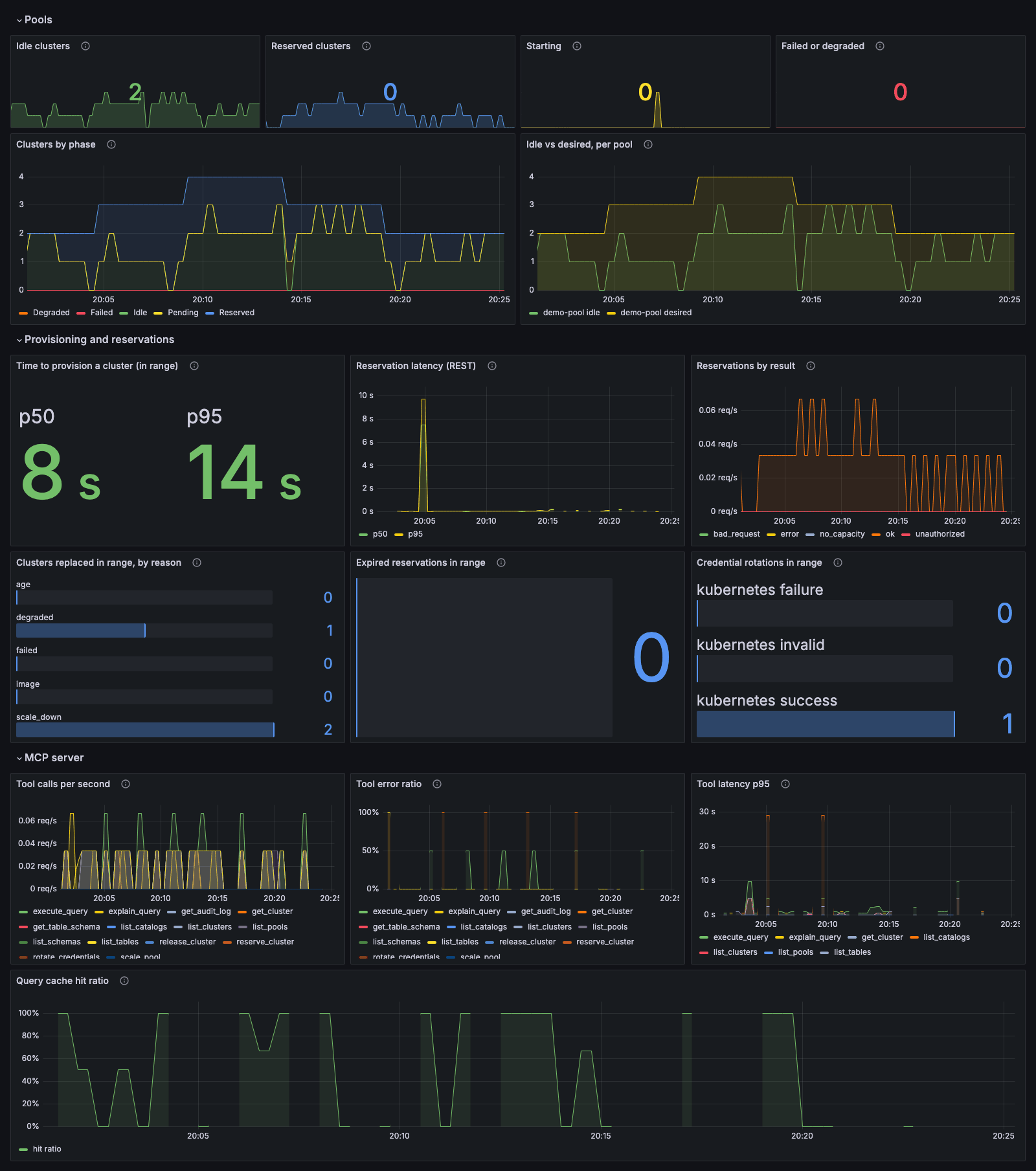
The dashboard has three sections:
- Pools: ready, reserved and starting clusters, and ready vs desired per pool.
- Provisioning and reservations: how long new clusters take, reservation latency, how often clients had to wait, and why clusters were replaced.
- MCP server: tool calls, errors, latency, and cache hit rate.
Alerts
Three alerts cover the problems people notice first. Save this as meridian-alerts.yaml, set the same release label as above, and apply it:
apiVersion: monitoring.coreos.com/v1
kind: PrometheusRule
metadata:
  name: meridian-alerts
  labels:
    release: <your-prometheus-release>
spec:
  groups:
    - name: meridian
      rules:
        - alert: MeridianPoolHasNoIdleClusters
          expr: |
            max by (namespace, pool) (meridian_clusters{phase="Idle"}) == 0
              and on (namespace, pool)
            max by (namespace, pool) (meridian_pool_desired_replicas) > 0
          for: 5m
          labels:
            severity: warning
          annotations:
            summary: "Pool {{ $labels.pool }} has had no idle clusters for 5 minutes"
        - alert: MeridianClustersFailing
          expr: |
            sum by (namespace, pool) (
              increase(meridian_pool_clusters_replaced_total{reason=~"failed|degraded"}[1h])
            ) >= 3
          labels:
            severity: warning
          annotations:
            summary: "Pool {{ $labels.pool }} replaced {{ $value | humanize }} broken clusters in the last hour"
        - alert: MeridianCredentialRotationFailing
          expr: |
            sum by (backend) (
              increase(meridian_credential_rotations_total{result="failure"}[30m])
            ) >= 3
          labels:
            severity: warning
          annotations:
            summary: "Credential rotations from {{ $labels.backend }} keep failing"
kubectl -n meridian apply -f meridian-alerts.yaml| Alert | What it means | What to do |
|---|---|---|
MeridianPoolHasNoIdleClusters | Every cluster in the pool has been busy for 5 minutes, so new reservations wait and may fail. | Raise the pool's replicas, or the autoscaler's maxReplicas. |
MeridianClustersFailing | The pool replaced three or more broken clusters in an hour. | Check the Trino pods' events and logs, for example for out-of-memory kills or image pull errors. |
MeridianCredentialRotationFailing | Rotations keep failing, for example because a Secret is missing or a password was rejected. Meridian keeps retrying. | Find the cluster with kubectl get clusters -A and read its CredentialRotation condition. |
Reports
Set the dashboard's time range to Last 7 days and it becomes a weekly report: the counts and provisioning times cover the whole range. For numbers to paste into a review, run these queries in Grafana's Explore view. Each looks back 7 days; change [7d] for another period.
# How busy was each pool? Average and peak share of clusters in use
avg_over_time((max by (namespace, pool) (meridian_clusters{phase="Reserved"})
  / max by (namespace, pool) (meridian_pool_desired_replicas))[7d:5m])
max_over_time((max by (namespace, pool) (meridian_clusters{phase="Reserved"})
  / max by (namespace, pool) (meridian_pool_desired_replicas))[7d:5m])

# How many reservations did apps make, and how many got no cluster?
round(sum by (result) (increase(meridian_reservation_duration_seconds_count[7d])))

# How long did apps wait for a cluster? (95th percentile, seconds)
histogram_quantile(0.95, sum by (le) (
  increase(meridian_reservation_duration_seconds_bucket{result="ok"}[7d])))

# How long does a new cluster take to start, per pool? (95th percentile, seconds)
histogram_quantile(0.95, sum by (pool, le) (
  increase(meridian_cluster_provision_seconds_bucket[7d])))

# Why were clusters replaced?
round(sum by (pool, reason) (increase(meridian_pool_clusters_replaced_total[7d])))

# Which agent tools are used most, and how often do they fail?
topk(5, round(sum by (tool) (increase(meridian_mcp_tool_calls_total[7d]))))
sum by (tool) (increase(meridian_mcp_tool_calls_total{result="error"}[7d]))
  / sum by (tool) (increase(meridian_mcp_tool_calls_total[7d]))
If the share of clusters in use often passes 70%, or apps start getting no_capacity, the pool is too small. If the peak stays low, you can run fewer clusters.
Going to production
You've seen every part of Meridian. When you set it up for real, work through this list:
- Size pools from real queries. Start with
defaultormedium, and use the dashboard's provisioning and reservation panels to tunereplicasand the autoscaler. - Separate workloads. One pool per kind of work (ETL, BI, ad-hoc), each with its own profile and
workloadtag, so they never compete. - Run more than one of each. Set
operator.replicasandmcp.replicasto 2 or more. Every replica serves the REST API and MCP, and upgrades happen without dropped requests. - Expose the MCP server over HTTPS. Put it behind an Ingress or gateway with TLS. Use
mcp.allowedOriginsonly if a browser-based app will call it. - Treat tokens and certificates as secrets. Issue client certificates per app, and restart the operator or MCP pods after rotating the server certificate or token.
- Enable only the agent tools you need, and keep
allowWritesoff unless an agent really must change data. - Use a real secret store for catalog credentials:
operator.credentials.provider=vaultoraws-secrets-manager. - Upgrade carefully. Helm doesn't upgrade resource definitions. Apply the new ones from the chart before each upgrade, as the README describes.
Clean up
Delete the whole local cluster:
kind delete cluster --name meridian-tutorialOn a shared cluster, delete your pool first, then uninstall the chart. Helm keeps Meridian's resource definitions, so remove them yourself if you're done with Meridian:
kubectl -n meridian delete clusterpoolautoscaler,clusterpool --all
helm uninstall meridian -n meridian
kubectl delete crd clusters.meridian.io clusterpools.meridian.io clusterpoolautoscalers.meridian.io
Where to go next
- The README lists every Helm value, operator flag, MCP tool and metric.
- Releases has the binaries and changelog.
- Questions or ideas? Open an issue.